Add Control Panel to Right-Click of Desktop
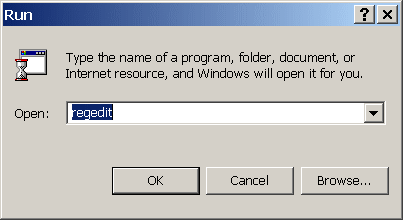
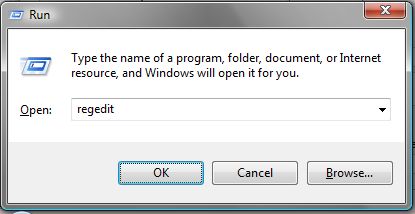
1. Open run and type regedit.
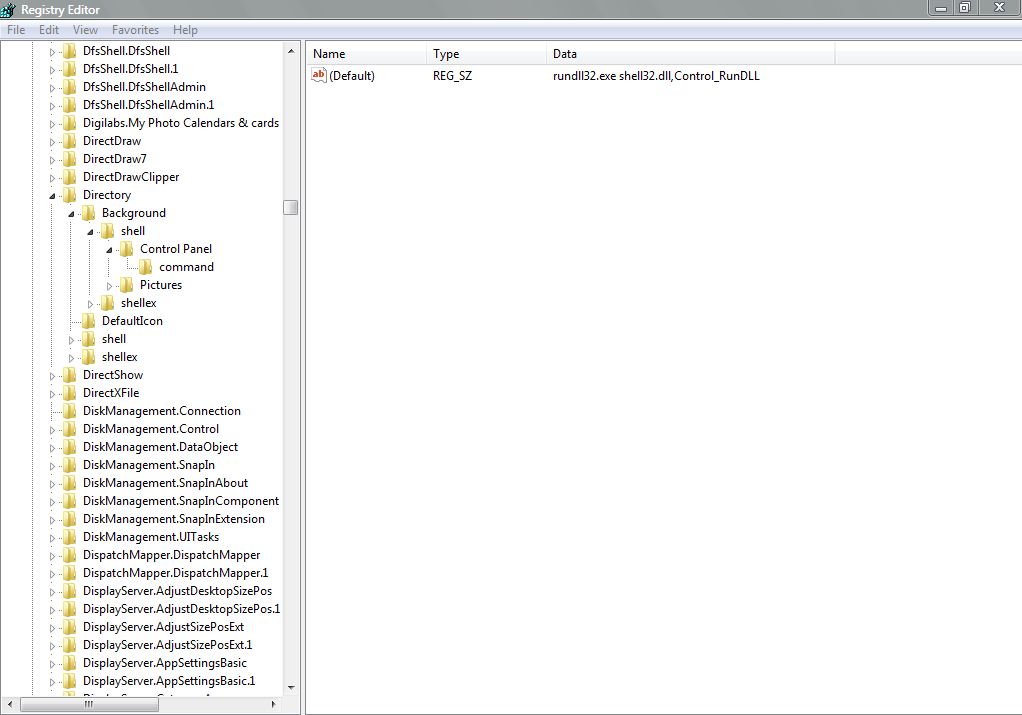
2. Go to Following Registry
HKEY_CLASSES_ROOT\Directory\Background\shell
3. Right Click on shell key in the left pane and create a new key and name it "Control Panel" and
4. then create another sub key within Control Panel and name it "command"
5. Double CLick on String key named "Default" in right pane of command and change its data to following:
rundll32.exe shell32.dll,Control_RunDLL
6. Now when you right click on your desktop, you will notice that Control Panel has been added to right Click context menu
Customize Folder and Drive Icons
1. Create a text file with following contents
[.SHellClassInfo]
ICONFILE=Place the Path of icon here
2. save it as desktop.ini in the folder whose icon you wish to change
3. To change the icon of drive, Create file with following contents.
[Autorun]
ICON=Place the Path of icon here
4. Save it as autorun.inf
Note: Change the attributes of file to Read only and hidden
Subscribe our Youtube Channel and like our facebook page.
WHAT TO DO IF COLLEGE HAS BLOCKED USB PORTS ?(Registry change)
This will work only if admin has done registry changes.
1. Open run and type regedit
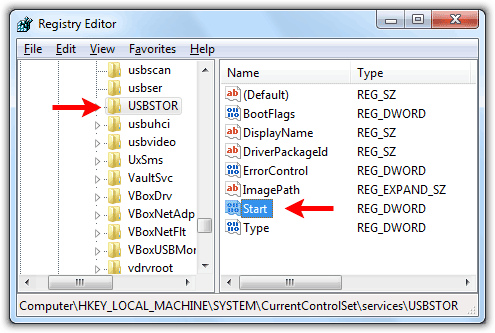
2. Go to following Registry
HKEY_LOCAL_MACHINE\SYSTEM\CurrentControlSet\Services\USBTOR
3. ON the right hand pane, double click on registry key START
4. To enable USB port change its value from 3 to 4
and to disable port change its value from 4 to 3
Disable Right Click on Desktop
1. Open cmd and type regedit
2. Scroll down to
HKEY_LOCAL_MACHINE\Software\Microsoft\Windows\Current Version\Policies\Explorer
3. In the Right pane, create a DWORD value named NoViewContextMenu in Registry key and set its data value to 1 to disable Right Click context meni on the Desktop, and 0 to enable it or delete the DWORD value to enable it.
4. NOw restart Windows.
How to disable windows Hot keys
1. Open cmd and type regedit
2. Scroll or create following resgistry key:
HKEY_LOCAL_MACHINE\SOftware\Microsoft\Windows\Current Version\Policies\Explorer
3. In the right pane, create a DWORD value named NoWinKeys within the above registry key and set its data value to 1 to disable the Windows hotkeys, and to 0 to enable them.
4. Exit Windows Registry and Restart windows for changes to take place.
Backup Windows 7 Registry
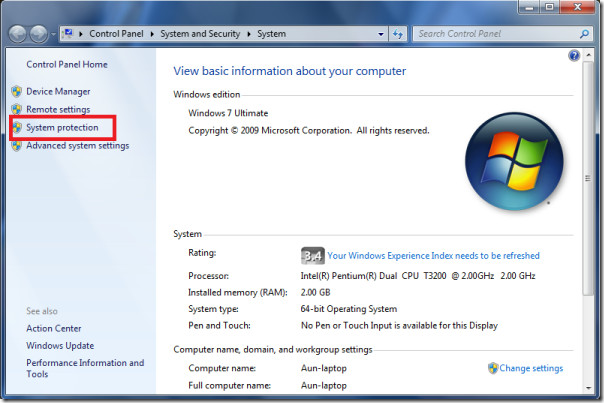
1. Right Click on COMPUTER and click on Properties.
2. CLick on SYSTEM PROTECTION option from left pane
3. Press CREATE button and WIndows will create a restore point to which your computer can be restored in case of any problem while editing registry